
AI Image Translation Editor - Fix Any Word, Keep the Art
One of the few image translators you can actually edit.
Other translators overlay new text and move on - if a word is wrong, you are stuck. TranslateImage's Editor lets you point at any word or region and have AI re-edit just that spot, matching the original font and color as closely as possible, so the artwork, layout and style stay as they were.
Translate, then perfect it
Translate an image here, then open the Editor to fix any word with AI - the art stays.
Drag & Drop your image here
JPG, JPEG, PNG, WebP files supported, 10 MB max.
Translating multiple images? Sign in to batch up to 20 files - Open the Batch Translator
How the Editor Works
Fix a translated image in three steps
Translate your image
Upload an image and pick a target language. You get a translated version in seconds that preserves the layout and matches the original font and colors as closely as possible.
Point at any word or region
Click a wrong or awkward line directly in the Editor. No design skills needed.
Type the fix, AI repaints
AI repaints only that region, matching the original font and color as closely as possible; the surrounding art and layout stay intact.
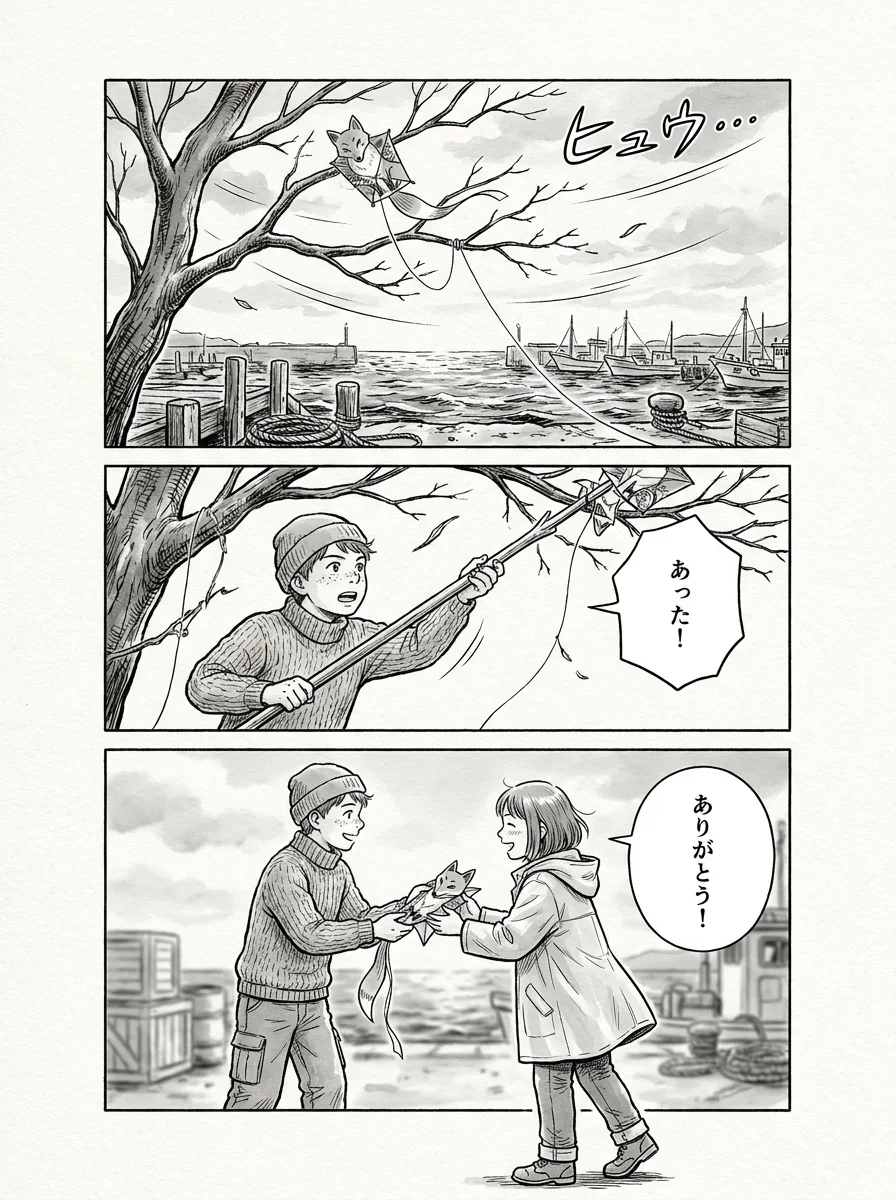
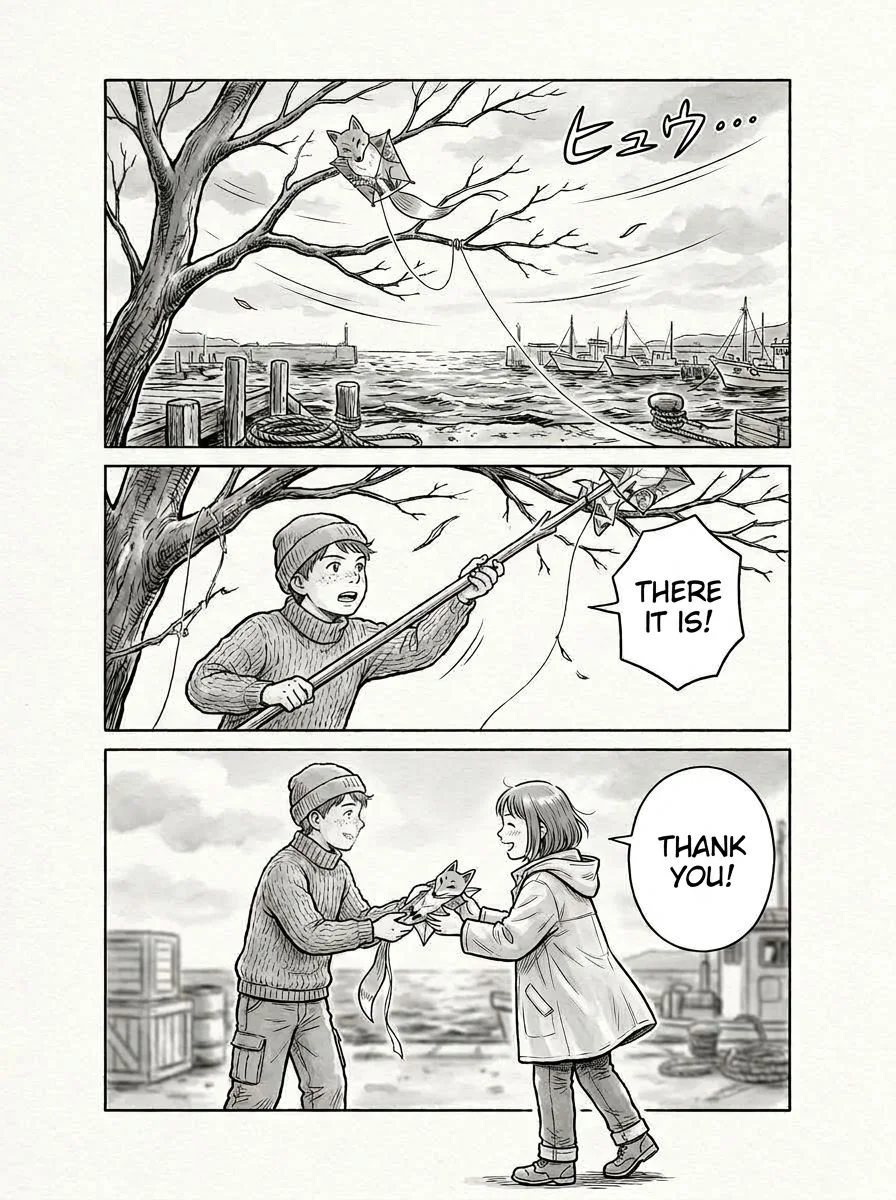
One word fixed, art intact
A real before/after result is more useful than another generic claim.
One word fixed, art intact.
Original
Translated
The Editing and Correction Difference
Most image translators are one-shot. TranslateImage lets you fix the result.
| Comparison axis | TranslateImage Editor | Typical AI image translators |
|---|---|---|
| Editing and correctionWe win here | Yes | No |
| Per-region refinement | Yes | No |
| Saved glossary corrections | Yes | No |
Frequently Asked Questions
Everything about editing translated images
What is an image translation editor?
An image translation editor lets you correct the text of a translated image after the AI has done the translation. Instead of re-running the whole image, you point at the word or region that is wrong and AI re-edits just that spot, matching the original art, font and layout as closely as possible.
How is this different from other image translators?
Most image translators are one-shot: they overlay translated text and stop. If a word is wrong or awkward, you must re-run the whole image or open Photoshop. The Editor is one of the few approaches that lets you fix a single region with AI while preserving the original artwork.
Does editing keep the original font and colors?
Yes. When you refine a region, the AI matches the original font, size and color of that region as closely as possible, so the artwork and layout stay intact. Complex backgrounds like sound effects may render less perfectly and are flagged before you refine.
Which images can I edit?
The Editor supports manga and general image translations - photos, screenshots, posters, menus, documents and more. The page must finish translating before it can be edited.
How much does refining cost?
Refining a region with AI costs a small number of credits, shown next to the Refine button before you confirm. There are no surprises: the price is displayed before the AI runs.
Can I use the Editor for manga translation?
Yes - it is especially useful for manga. You can fix a single speech bubble or sound effect, save corrections to your glossary, and keep the panel art intact. This is the workflow scanlators used to do by hand in Photoshop.