The most common question about batch image translation is simple: can I close the tab while it translates?
The short answer is yes. When you start a batch, the actual translation work moves to the server and runs in the background. Your browser tab is there to upload the images, watch the progress, and collect the results. It is not doing the heavy lifting, so a brief disconnect does not stop the job.
This guide explains how that works in practice: what "async" really means, what happens if you refresh or step away, how the same browser picks a batch back up, when you might get a completion email, and how partial failures are handled. It applies to any image batch, not just manga. If your goal is the manga chapter workflow, our chapter batch guide covers ordering, CBZ/ZIP unpacking, and the manga glossary chain in detail.
What "async" batch translation means
Single-image translation is a live, one-shot request: you upload one image, wait for the result, and download it. That is great for one file and painful for many.
Async batch translation is different. You set the whole batch up once, start it, and the server processes the images in the background as the job progresses. While that happens:
- Each finished image appears in the grid as soon as it is done, so you can spot-check early results while later ones are still running.
- You can preview finished images in the grid as they complete. The download is a single ZIP of all completed results, not individual per-image downloads.
- When the whole batch is finished, you download a single ZIP that keeps your order. Loose images keep their original filenames (with a
translated-prefix); archive pages are renamedtranslated-<archive-base>-p<N>.<ext>.
The important part for this guide is the word background. Once you click Translate All and the batch starts, the translation is driven from the server. Your browser polls for status, but closing or refreshing the page does not cancel the work the way it would for a synchronous request. A temporary browser disconnect does not turn the batch into a tab-bound task.
Before you start
A few rules keep an async batch clean:
- Sign in first. Batch translation requires a signed-in account so credits and the background job can be tied to you. If you are not signed in, the upload opens a sign-in prompt.
- Up to 20 images per batch. Add ordered images together, or drop a single CBZ/ZIP archive that is unpacked into pages. Longer sets should be split into multiple batches.
- One setup for the whole batch. All images share the same source and target language and the same mode (General or Manga).
- Background translate is for images only. Async background processing applies to image batches. Non-image files such as PDFs are rejected by the batch upload; translate them one at a time with single-file translation instead.
- Total cost up front. The Translate All button shows the full batch cost before you start, so there are no surprise deductions partway through.
You can start a batch from the batch image translator page, the manga translator, or the main translate tool. All three use the same upload engine and the same batch grid.
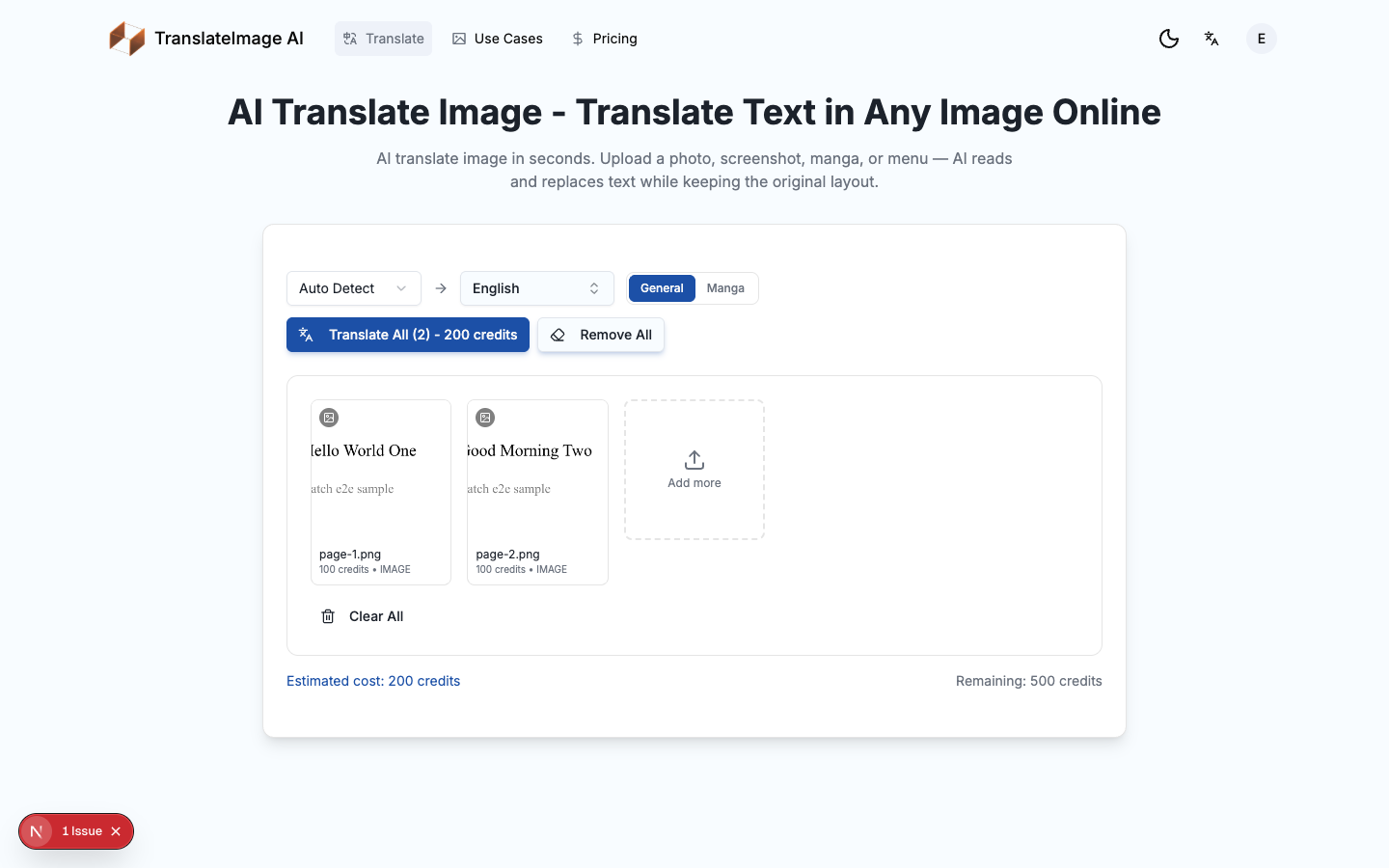
Start the batch
After your images are in the grid and your languages and mode are set:
- The app checks that your credits cover the full batch total before anything is charged.
- You click Translate All.
- Each image is uploaded, the batch is queued, and the server begins processing pages in the background.
- The grid updates page by page as pages complete.
That moment, when the batch is started, is the boundary this guide cares about. From here on, the work is server-side and resilient to a browser disconnect.
What happens if you refresh or step away
Because the job runs on the server, you have options while it works:
- Keep the tab open and the grid polls live, filling in each page as it finishes. This is the smoothest experience for review and the ZIP download.
- Refresh the page in the same browser and the server job keeps running. A batch id in local storage lets the page reconnect and show a completion summary, but the preview grid and one-click ZIP depend on the local items in the active session - a reload can prevent preview and ZIP recovery.
- Close the tab or step away entirely and the job still finishes on the server. Nothing about closing the tab cancels a started batch.
One honest limit worth knowing up front: the per-page preview grid and the one-click ZIP download are part of the page session where you uploaded. If you fully reload the page, that in-memory grid is not restored. So for reviewing thumbnails and downloading the ZIP without re-uploading, keep the original tab open without reloading. This is covered in more detail in the restore section below.
How restore works in the same browser
When you start a batch, a single resume record is saved in your browser's storage for this site. It is just an identifier that points to the running batch. It does not contain your images.
When you return to the translator in the same browser, with site storage intact and still signed in, the page reads that record and reconnects to the running batch:
- It reconnects to the batch and continues polling for status.
- Pages that were already uploaded to the server but not yet queued can be republished via Translate All without needing the local files. Only files whose upload never reached the server cannot be recovered - those need the original local files to be re-added.
- When the batch ends, it shows you a completion summary.
A few boundaries on this, stated plainly:
- Same browser and device only. The resume record lives in the browser that started the batch. It is not shared across devices, browsers, or profiles.
- No job-history view. There is no list of past batches to browse. Restore relies on that one browser record, and it applies only while a batch is still in flight.
- Not guaranteed permanent recovery. If you clear your browser's site data, use a different browser or device, or stay away until long after the batch ended, the restore record may be gone or no longer useful. In that case, re-upload the images in a fresh batch to translate or re-download them.
- The preview grid and ZIP are session-bound. After a full reload, the grid of thumbnails does not come back, even though the batch itself still runs and finishes. To review pages visually and grab the ZIP, keep the original tab open without reloading.
This is why the practical advice is simple: start the batch, keep the tab open if you want the live grid and one-click ZIP, and otherwise let it run. If you refresh or return later in the same browser, the job is still alive and the page can show a completion summary when it finishes, but the preview grid and one-click ZIP are not guaranteed after a reload.
When you get a completion email
As a convenience, the system can email you when a batch ends. A few conditions apply, and the email is best-effort rather than guaranteed:
- You may receive a completion email the first time a batch finishes.
- It depends on your account having an email address on file and on email delivery being available for the site. If either is missing, no email is sent.
- A batch that ends partially complete can still trigger the email. The message reports how many pages completed and how many failed.
- It is sent once, at the moment the batch reaches its final state. It is not a live progress update.
The most reliable way to know a batch is done is still to keep the tab open or check back in the same browser. Treat the email as a helpful heads-up when it arrives, not as a guarantee.
Partial failures and retry
Not every page always succeeds on the first try. The system handles this in layers:
- Automatic retry. A page that errors is retried automatically once before it is marked failed. You do not have to do anything for this.
- Failed pages do not cost credits for the failed attempt. Only successfully translated pages are charged, so a failed page is not a wasted deduction.
- Retry failed pages in your current session. If some pages end up failed, you can click Translate All again to retry the failed pages together with any still-pending pages, without re-running the pages that already succeeded. This works as long as you are still in the page session where you uploaded.
- After a reload or closed tab, re-upload. The retry button relies on the original images still being in that page session. Once the tab has been reloaded or closed, that data is gone, so failed pages need to be re-uploaded.
- A batch can end partial. A batch finishes as fully complete, fully failed, or partially complete (some pages done, some failed). A partially complete batch still lets you download the pages that succeeded.
Your browser storage and cleanup
A quick note on privacy and cleanup:
- The resume record stored in your browser is a single identifier. It does not contain your images, their content, or your translations.
- It is scoped to this site in this browser. Clearing your browser's site data removes it, which simply means the next visit starts fresh instead of resuming.
- Translated results are stored in cloud storage for a limited time and expire, so download them promptly while the batch results are available.
FAQ
Can I close the tab while batch translating images?
Yes. Once a batch is started, the translation runs on the server in the background. Closing the tab does not cancel it. When you return to the translator in the same browser, the page reconnects and tells you when the batch is done.
Will my batch resume after a refresh?
Yes, in the same browser with site storage intact and still signed in. The page reads its resume record, reconnects to the running batch, and shows a completion summary when the batch ends. Pages already uploaded to the server but not yet queued can be republished via Translate All without local files; only files whose upload never completed cannot be recovered without the originals. The preview grid and one-click ZIP are not guaranteed after a reload, so keep the original tab open if you want the live grid and one-click ZIP.
Do I get a notification when the batch is done?
You may receive a completion email the first time a batch finishes, if your account has an email address on file and email delivery is available. It is best-effort, not guaranteed. Keeping the tab open or checking back in the same browser is the most reliable way to know.
Can I resume a batch on another device?
No. The resume record lives in the browser that started the batch. It is not shared across devices or browsers, and there is no history page that lists your past batches. To continue on another device, start a fresh batch.
What happens if a page fails?
It is retried automatically once. If it still fails, only the successful pages are charged, and you can retry the failed pages with Translate All while you are still in the original page session. After a reload or closed tab, re-upload the failed images.
How many images can I translate in one batch?
Up to 20 images per batch. Longer sets should be split into multiple batches. Keep filenames ordered so the ZIPs merge cleanly.
Is there a job history I can review later?
No. Restore relies on a single resume record in the browser that started the batch, and only while a batch is still in flight. There is no list of past batches to review later.
Wrapping up
The async batch system is built so you do not have to babysit a queue. Start the batch, let it run in the background, and the server keeps working whether the tab is open, refreshed, or closed. To make the most of it:
- Sign in and add up to 20 images on the batch image translator.
- Set your languages and mode, and confirm the total cost shown before you start.
- Keep the tab open for the live grid and one-click ZIP, or step away and return in the same browser to a completion summary.
For the manga-specific chapter workflow, including CBZ/ZIP unpacking, page ordering, and the best-effort glossary context chain, see the chapter batch guide. For deeper manga reference, read the Manga Mode docs and the glossary context chain docs. For everything else, start at the translate tool.
Questions or batch-workflow feedback? Email support@translateimage.ai.