Translating one manga page is easy. Translating a whole chapter is where most people get stuck.
A typical chapter is 15 to 25 pages. If you translate them one by one, you spend the evening babysitting a queue: upload, wait, download, rename, move the file, start the next page. By page twelve the filenames are a mess, the tabs are out of order, and you still have to zip everything yourself before you can read the chapter on a tablet.
This guide shows how to translate a whole manga chapter at once with batch AI translation on TranslateImage AI: queue up to 20 pages as one async background job, and download a single ZIP that keeps your page order.
Why page-by-page chapter translation hurts
Chapter work is not just "single page translation, repeated." Three friction points show up every time:
- Waiting multiplies. Even a short page becomes minutes of dead time across a chapter. You either stare at a spinner or context-switch and lose your place.
- File management multiplies. Twenty original files plus twenty translated files means forty names to keep straight. One misnamed export and the reading order breaks.
- Setup repeats. When each page is a separate session, you re-pick languages, re-check mode, and re-verify settings.
If your goal is to translate whole manga at once for personal reading or a fan project, you want a workflow designed for chapters, not screenshots.
What batch manga translation is
Batch chapter translation is an async job: you set it up once, the pages are translated in the background, and you collect everything as one ZIP at the end.
A signed-in batch lets you:
- Add up to 20 images in one go (ordered loose images, or the pages unpacked from a single CBZ/ZIP archive)
- Share the same source/target languages and Manga mode across every page
- Run the chapter as a background job instead of babysitting one page after another
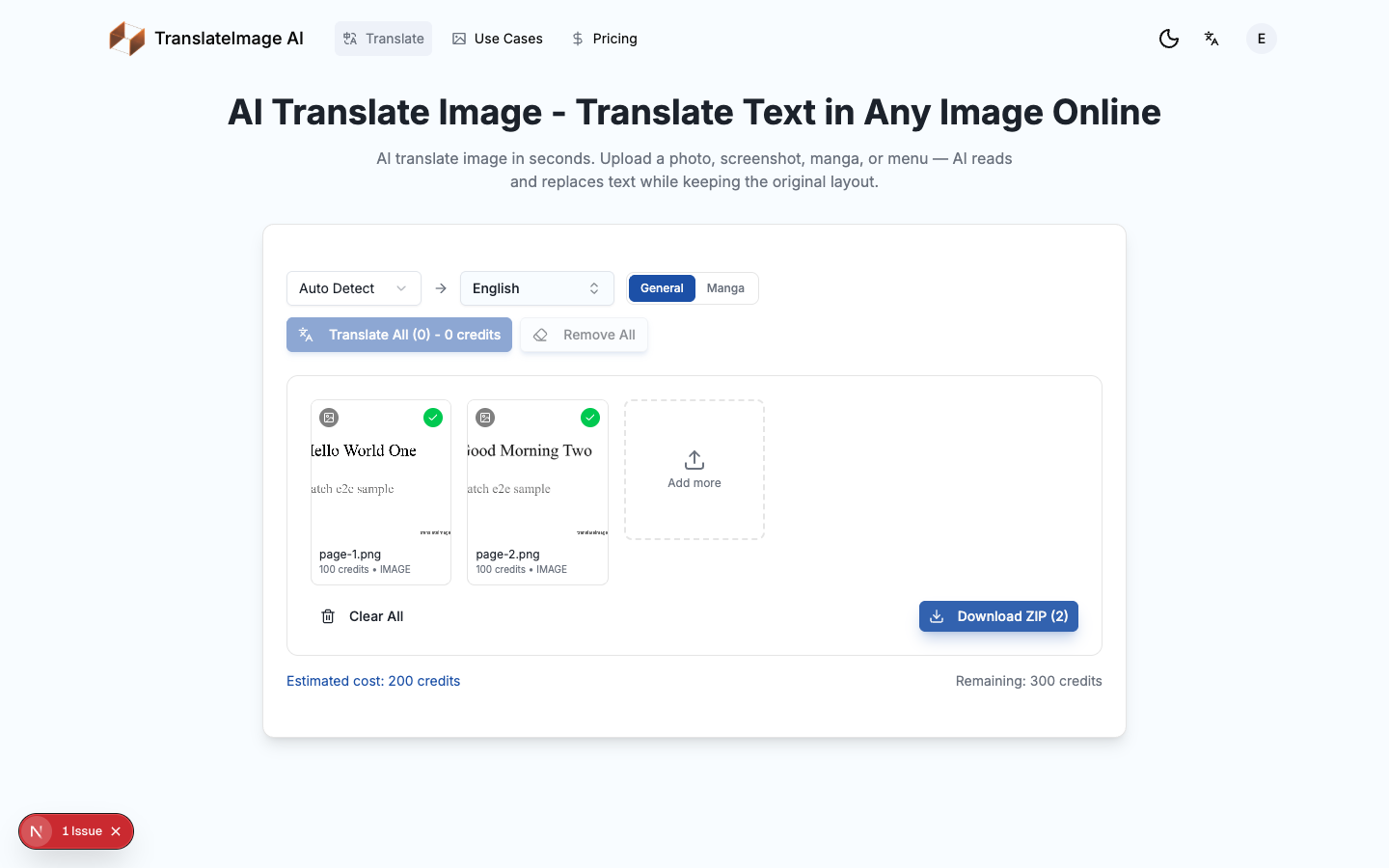
- Watch finished pages appear in the grid as they complete
- Resume in the same browser and device, with TranslateImage AI site storage intact, if you refresh or step away
- Download one ZIP with ordered translated entries (
translated-<original-name>for loose images,translated-<archive-base>-p<N>.<ext>for archive pages)
That is batch manga translation in practice: one setup, many pages, one package.
Step-by-step: translate a manga chapter in one batch
Step 1: Sign in and open the translator
Translation requires a signed-in account with credits, so credits and the async job can be tracked to your account.
Open the manga translator or the main translate tool. Both routes use the same upload engine and the same batch grid.
Step 2: Add the chapter - ordered images or one CBZ/ZIP
You can add a chapter two ways:
- Ordered images: select the chapter pages together (Cmd/Ctrl-click or shift-select in Finder/Explorer) and drop them into the upload area.
- One archive: drop or pick a single CBZ or ZIP file. The archive is unpacked in your browser, and its image pages are loaded into the grid in natural reading order (
01.png,02.png, ...).
A few rules keep the run clean:
- Keep original filenames in reading order so the final ZIP stays ordered.
- Prefer clear scans or digital pages over heavily compressed social reposts.
- Use PNG, JPG, JPEG, or WebP, up to 10 MB per image.
- Cap the chapter at 20 pages per batch.
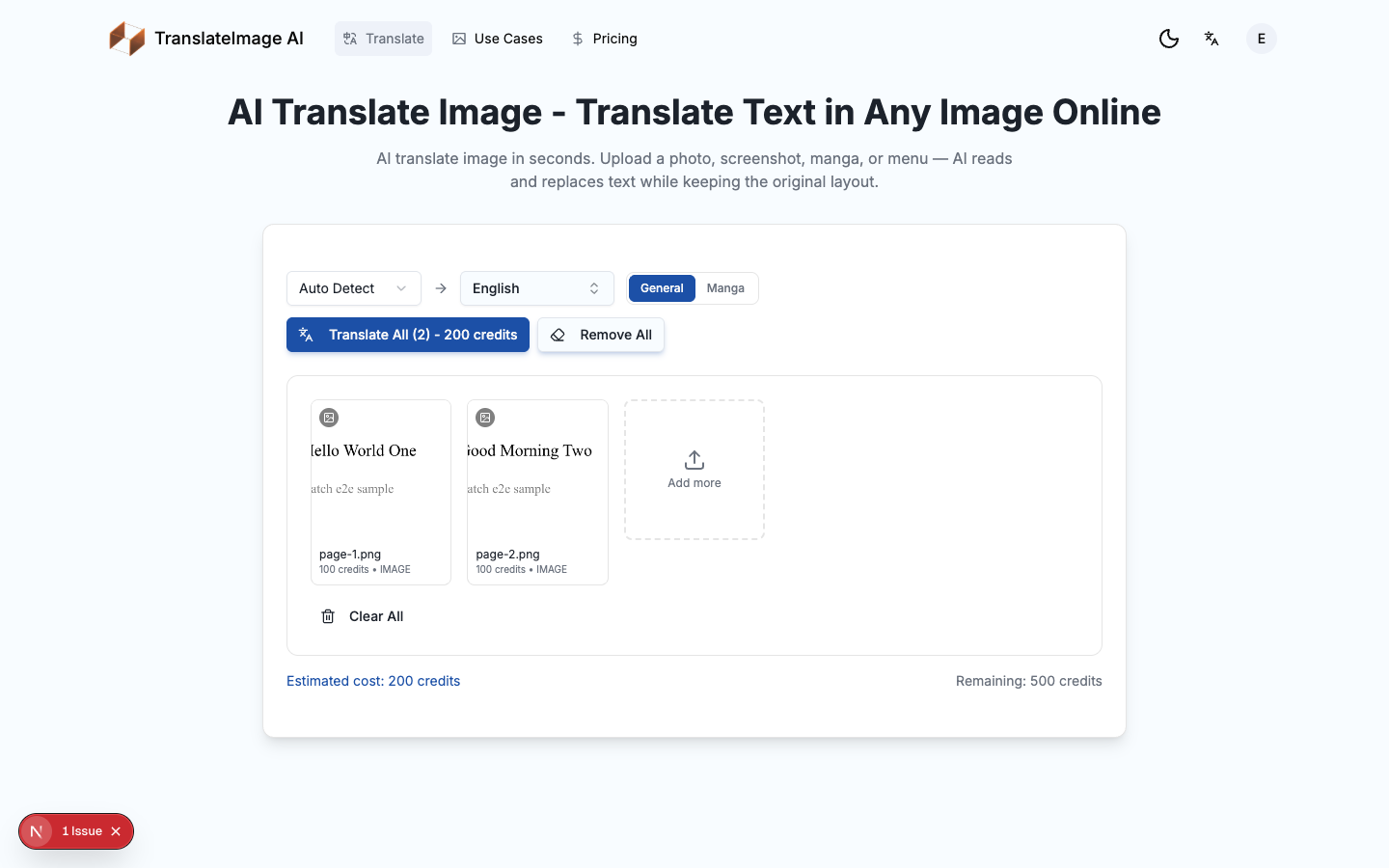
The UI shows a grid of pending pages instead of a single preview. That grid is your chapter workspace.
Archive limits (CBZ/ZIP only)
If you upload an archive, keep it inside these limits. Anything beyond them is rejected with a clear message before the run starts, so you can fix it without losing credits.
- Format: CBZ or ZIP only. No EPUB, RAR, or 7z.
- Pages: up to 20 image pages per batch. Longer chapters must be split into multiple batches.
- Compressed size: the archive file itself must be at most 200 MB.
- Entries: at most 500 entries inside the archive (including any non-image files).
- Per image: each unpacked image must be at most 10 MB.
- Total images: the unpacked images together must total at most 150 MB.
- Image types: PNG, JPG, JPEG, and WebP only.
Step 3: Choose Manga mode and languages
Set:
- Source language (or auto-detect when the chapter is clean Japanese/Korean/Chinese)
- Target language (English is the most common, but any supported language works)
- Manga mode for speech bubbles, vertical text, and sound-effect-heavy pages
Manga mode costs 150 credits per page. The Translate All button shows the total chapter cost up front - for example, 18 pages shows the full 18-page total before you start, so there are no surprise deductions mid-batch.
Step 4: Start the async job
Click Translate All. The chapter is queued as an async background job:
- Each page is uploaded, then translated server-side as the job progresses.
- The grid updates page by page as pages complete, so you can spot-check early pages while later ones are still running.
- You can preview finished pages in the grid as they complete; you do not have to wait for the whole chapter to spot-check early results.
Step 5: Refresh, resume, and the optional completion email
Because the job runs in the background, you do not have to hold the page open the entire time:
- Keep the tab open and the grid polls live, showing each page complete.
- Refresh the page in the same browser (or navigate away and come back) and the server job keeps running. A batch id in local storage lets the page reconnect and show a completion summary, but the preview grid and one-click ZIP depend on the local items in the active session - a reload can prevent preview and ZIP recovery.
- If your account has an email address on file and an email provider is configured, you may get a completion email when the job ends. The email is conditional and best-effort - it is not guaranteed, so keep the tab open or check back if you do not receive one.
One honest limit: there is no cross-device job history or dashboard. The per-page grid and the one-click ZIP download live in the browser tab where you started the batch. If you closed that tab entirely, start a fresh batch to re-download.
Step 6: Review, retry failed pages, and download the ZIP
When the job finishes, review the grid:
- Completed pages are kept. Pages that succeeded are never re-translated.
- Retry only what failed. If some pages error out, you can retry the failed ones (together with any still-pending pages) without re-running the pages that already succeeded, as long as you do it before reloading. After a reload the local items are gone, so failed pages need to be re-uploaded.
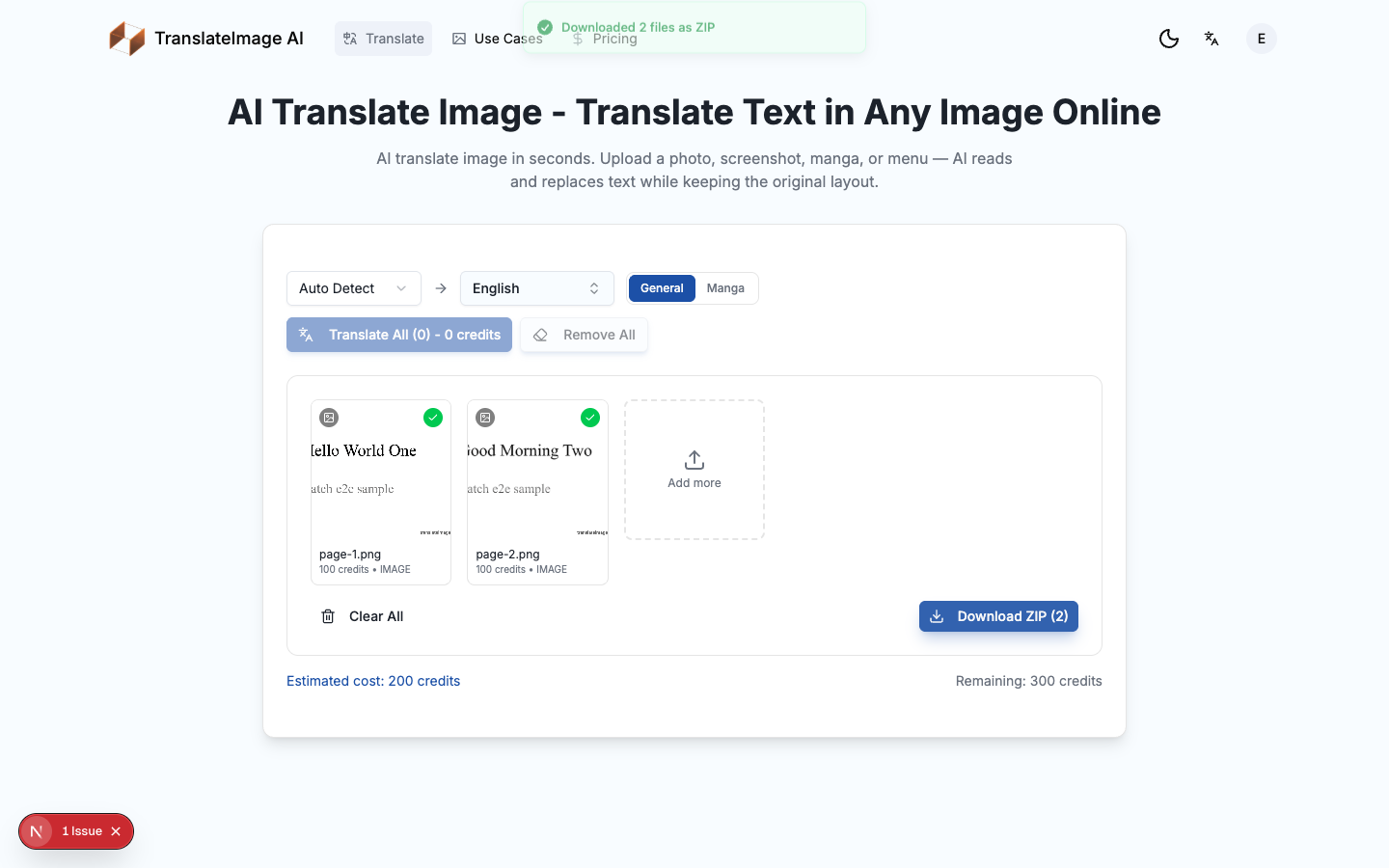
- Download one ZIP. Click Download ZIP to get every completed page in one archive. Loose images keep their original names with a
translated-prefix; archive pages are renamedtranslated-<archive-base>-p<N>.<ext>. Reading order is preserved either way.
Failed pages do not burn credits for their failed attempt. If one page errors, the rest of the batch continues, and you retry just the failure.
Cross-page consistency and the manga glossary
What Manga Mode is designed to do
Manga mode is tuned for comics, not product photos. These are design goals, not guaranteed outcomes on every page:
- Speech bubbles are designed to stay readable instead of getting covered by clumsy overlays.
- Vertical text and dense panels are designed to be handled more carefully than generic image OCR.
- Sound effects (SFX) are treated as part of the art, not random noise to erase.
- Layout, gutters, and artwork are meant to be preserved so the page still feels like manga.
For a single-page walkthrough of style preservation, see our earlier guide: How to Translate Manga Images to English.
The best-effort glossary context chain
Manga batches include a best-effort glossary context chain. As the chapter job runs, each successfully translated manga page tries to extract character names and recurring terms and adds them to a shared glossary for the pages that follow. The aim is to keep a character name or invented term spelled the same way across the chapter.
This is best-effort and ships today, with clear limits:
- It is not guaranteed. Extraction or the merge step can fail or time out silently. When that happens, it never blocks the page - you still get the translated page either way.
- It is not perfect. Under background processing, a term can occasionally slip and not lock to one spelling. It improves consistency across a chapter; it does not promise flawless cross-page naming.
If a proper noun must stay exact for your fan project or archive, skim the ZIP after download and fix the rare drift by hand.
How much does batch chapter translation cost?
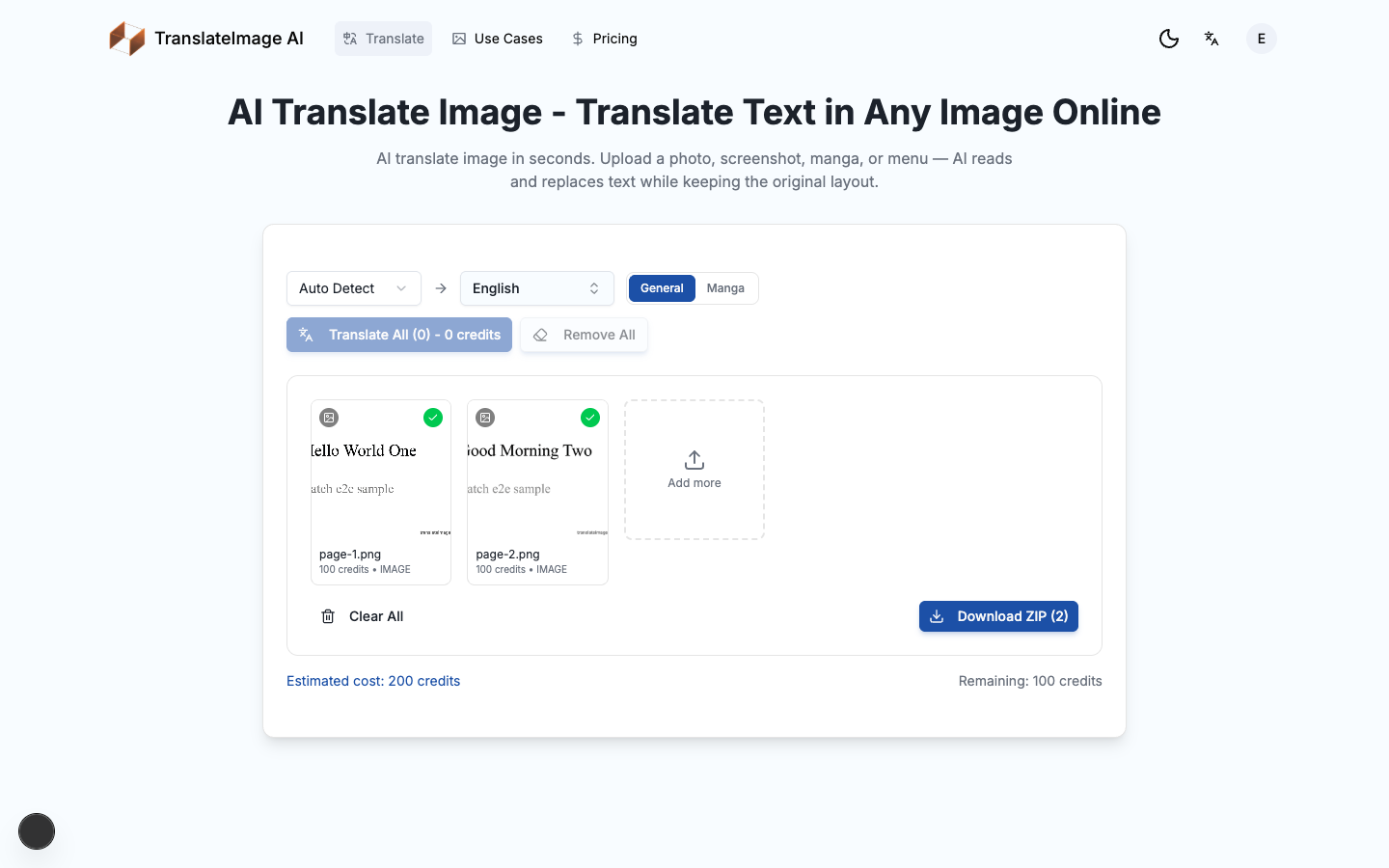
- Manga mode: 150 credits per page.
- General image mode: a lower per-page cost for non-manga images (menus, screenshots, product shots).
- Upfront total: the Translate All button shows credits for the whole batch before you confirm.
- Entry cost: see the pricing page for current credit packs. At 150 credits per manga page, 3,000 credits cover about 20 pages.
- Watermark: paid credits and eligible subscriptions unlock clean, watermark-free downloads.
When batch is the right tool (and when it is not)
Use batch chapter translation when:
- You want to read an untranslated chapter the same day.
- You are preparing a personal archive of pages in order.
- You are localizing a short comic package or product-image set (up to 20 files).
Stay on single-image mode when:
- You are testing quality on one difficult page first.
- The page needs heavy manual cleanup before the rest of the chapter is worth running.
- You only need one panel or cover.
For non-manga bulk jobs - ecommerce catalogs, screenshot packs, document scans - the same batch engine works from the main translator and the dedicated batch image translator page.
FAQ
Can I really translate a whole manga chapter at once?
Yes. Sign in, add up to 20 pages (ordered images or one CBZ/ZIP), choose Manga mode and your languages, then run Translate All. The chapter runs as an async background job and downloads as one ZIP.
What if my chapter has more than 20 pages?
Split it into two batches (for example pages 1-20 and 21-24). Keep filenames ordered so the ZIPs merge cleanly in your reader folder.
Can I upload a CBZ or ZIP archive?
Yes. A single CBZ or ZIP is unpacked in your browser and its image pages are loaded into the grid in reading order. EPUB and other archive types are not supported. See the archive limits above for the exact size and page caps.
Will every page look identical in font style?
Each page is processed individually. Visual consistency is a design goal - the model aims to preserve layout per page - rather than a guaranteed cross-page look. Cross-page term consistency is handled by the best-effort glossary context chain, which improves consistency but is not perfect - worth a quick skim if a name must stay exact.
What happens if I close or refresh the tab?
The server job keeps running. A batch id in local storage lets the same browser reconnect and show a completion summary, but the preview grid and one-click ZIP depend on the local items in the active session and a reload can prevent preview and ZIP recovery. You may also get a completion email if your account has an email address on file and an email provider is configured. There is no cross-device job history. For the full leave-refresh-resume model, read the async image translation guide.
Is batch manga translation free?
No. Translation runs on paid credits or a plan, and new signups do not receive gift credits. Paid exports are watermark-free. The button always shows the total before you start.
Start with one chapter
If you have been stuck in page-by-page hell, try one chapter end to end:
- Sign in at TranslateImage AI
- Open the manga translator
- Add the chapter - ordered images or one CBZ/ZIP
- Choose Manga mode + target language
- Translate All, review and retry, then Download ZIP
For single-page style tips and before/after comparisons, read How to Translate Manga Images to English. For general bulk image jobs beyond comics, use the batch image translator page.
Questions or chapter-workflow feedback? Email support@translateimage.ai.