You translated an image. Ninety-nine percent of it is perfect. And then you spot it: one word is wrong. Not wrong-wrong - just wrong enough that you cannot ship it.
If you have used any AI image translator before, you know exactly what happens next. You re-run the whole image, wait, download, check - and the model changed three other words while fixing the one you cared about. Or you open Photoshop, spend twenty minutes trying to match the font and colors by hand, and give up on the clean result you already had.
There is a third option: fix just that word with AI, in a region editor, while the original artwork stays intact. This guide shows you how.
Why "re-run the whole image" is the wrong fix
Most image translators on the market are one-shot: they overlay translated text and stop. That design makes a single-word fix expensive in three ways:
- You pay full price again. A re-run costs the same credits as the first translation - for one word.
- The rest of the image can regress. AI models are not deterministic. The five other regions that were perfect may come back different, sometimes worse.
- You lose the art. Every re-run re-renders the whole page. Backgrounds, textures, and hand-drawn details can degrade even when the model is good.
The fix is to treat the translation as an editable document, not a one-way render.
What region-level editing is
A region editor works like this: after translation, the image is split into detected text regions - each word or line that the AI rewrote. You click the region that is wrong, type the correct text, and the AI repaints only that region, matching the original font, size, and color as closely as possible.
The rest of the image stays as it was. It is not re-rendered or re-sampled; it stays the way you approved it.
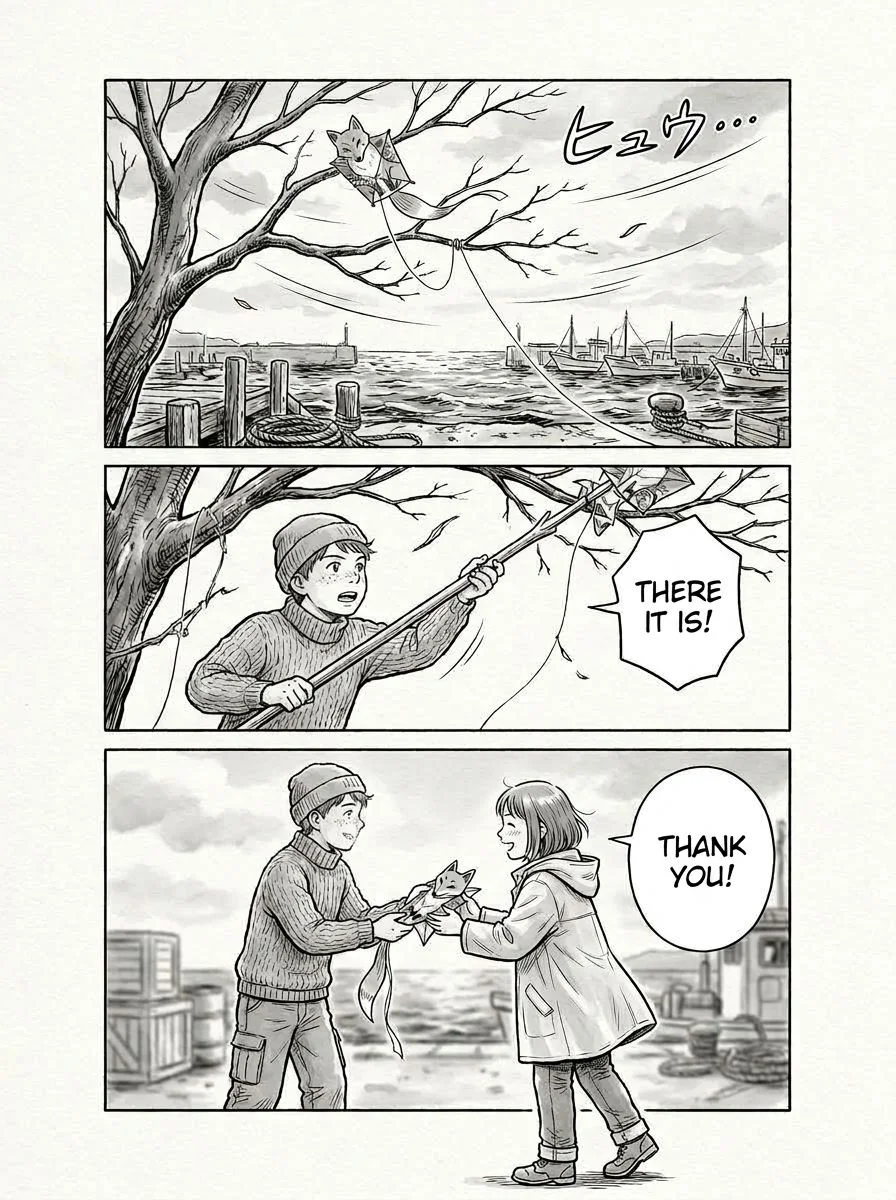
How to fix one word in three steps
Step 1: Open the Editor
After translating an image on TranslateImage AI, use the Open Editor button on the result page. Signed-in users can also reopen any translated image from the Images tab in Activity - the editor link is saved with each task, so leaving the result page does not lose your fine-tune entry.
Step 2: Click the wrong word
The Editor shows every detected text region as a selectable overlay. Click the word or line that needs fixing. You do not need design skills, layers, or a pen tablet - just the ability to point at the problem.
Step 3: Type the fix and let AI repaint
Enter the correct text (or add a style instruction like "match the bold horror font"). The AI re-edits only that region, matching the original font and color as closely as possible. The art, layout, and every other region stay as they were.
Region refinement costs a small number of credits, shown next to the Refine button before you confirm - no surprise charges.
What stays intact
This is the part that surprises people, so let us be explicit. When you refine one region:
- The artwork beyond the edited spot is not re-run. Only the word you picked and a small margin around it are re-edited; the rest of the panel lines, shading and textures stay exactly as they were.
- The layout is not re-flowed. Every other text region keeps its position and appearance.
- The font and color of the fixed region are matched as closely as possible to the original style, not a generic overlay.
The rest of the image stays as it was; only the area around the word you picked is re-edited.
Pro tips for a clean fix
- Give instructions for tricky styles. The instructions field is optional, but for stylized fonts or tone-sensitive text, a sentence like "keep it playful, not formal" improves the match.
- Save corrections to your glossary. If you fix a term once, save it - future pages with the same word will use your correction automatically. This is huge for manga series with recurring terminology.
- Fix sound effects carefully. Complex-background regions (SFX over textures) can render less perfectly. The Editor flags these before you spend credits.
The one-shot vs editable difference, in one line
A one-shot translator gives you a result. An editable translation gives you a result you can correct - and for anything you plan to publish, that is the difference between "good enough" and "right."
If you have a translated image with a wrong word right now, do not re-run it. Open the Image Translation Editor and fix just that word - the art stays.
Try it: Translate an image, then use Open Editor to fix any word with AI.